With your Business Mailbox Subscription, you can easily access your Mailbox directly from your Tailor Brands account. Alternatively, you can also access it directly through the Google sign-in page.
To access the Business Mailbox from your Tailor Brands account, follow these simple steps:
- Log in to your Tailor Brands account
- Go to the Business email (Google Workspace) tab on the left-hand menu
- Click on Go to Mailbox
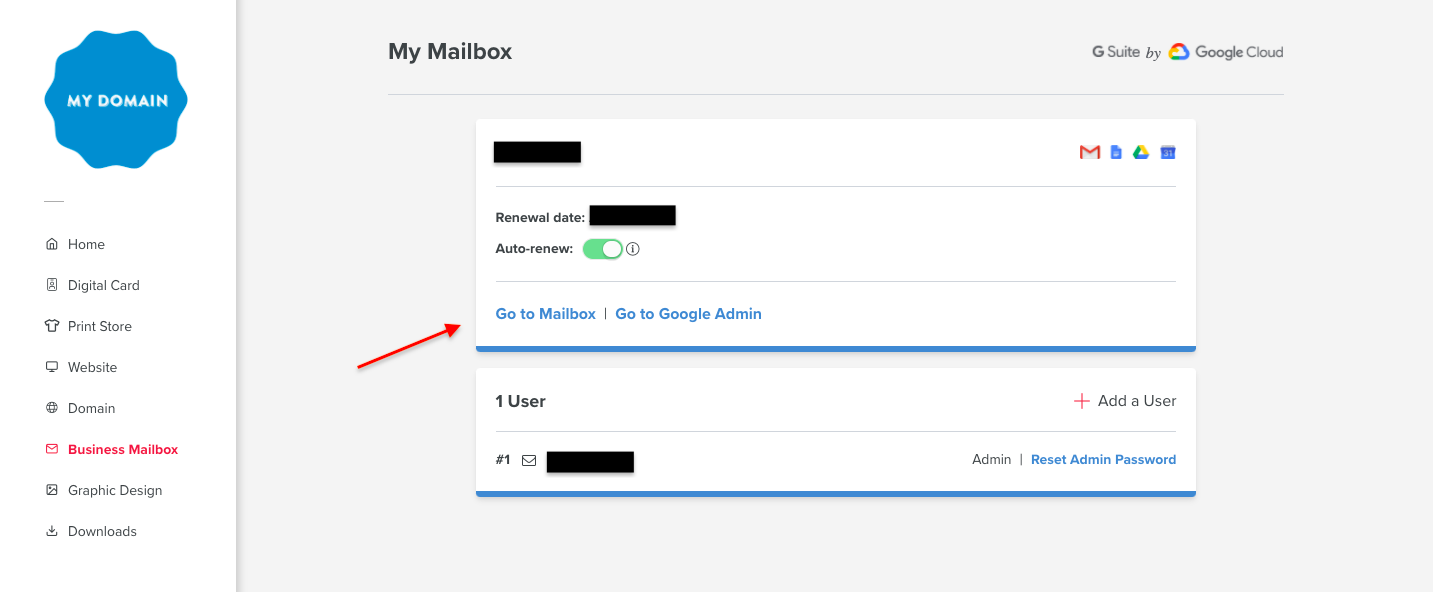
From here, you will be directed to the Google sign-in page, where you will be asked to input your Business Mailbox and password.
- Remember to input the email address created with Tailor Brands and not any personal @gmail.com addresses.
- If you are unsure of the password, you can always click on the Reset Admin Password button on the Business Mailbox tab within your Tailor Account. You can also view this article here.
Redirected to personal Gmail
If you're having trouble accessing your mailbox because you get redirected to your personal email, please follow these steps:
1. Log in to your Tailor Brands account
2. From your Tailor Studio, select the Business Email tab on the left-hand menu (or here  , on the top right corner if you are on your phone)
3. Click on Go to Google Admin
If your personal Gmail account auto-fills when you try to log in, use Private/Incognito mode to follow the steps above, or try to use another browser or device.
Alternatively, you can follow these steps:
To make accessing your business email easier, consider adding it to your device. You can do that by following the instructions here: Add Business Email to Your Device.