Our logo editor gives you classic, timeless design structures. While it may not allow for highly artistic, custom creations, it’s perfect if you want a solid, straightforward, professional logo.
How to Create a Logo with Tailor Brands
If you’ve never created a Logo before with Tailor Brands, follow these steps:
- Log in to your Tailor Brands account.
- Go to the Logos tab in your Tailor Studio.
- Type in your business name and tagline.
- Click Get Started.
If you have already created logos with Tailor Brands, and want to create a new one, follow these steps:
- Open the Logos tab.
- Click Create New.
- Enter your business name and tagline.
- Click Continue.
Step-by-Step Logo Creation Process
- Give us some background about your business.
-
Choose Logo Type Options:
- Name-based (business name only)
- Initial-based (monogram look)
- Icon-based (symbol included) - if you choose this options, search with keywords and pick up to 5 icons to try in your logo.
Please note that the system will still suggest names and initial logos even if you select icon-based.
3. Choose Font Preferences - please select 3 fonts you like (mandatory to continue). The system may also suggest extra fonts that fit your style. Please note that most of our logo fonts support English-only characters.
4. Review Suggested Designs - Browse the auto-generated logos.
- If you are happy with the design as-is, click "Love it!".
- If you would like to tweak colors, fonts or layout, click on "customize" and once satisfied, click "I’m finished". The logo will be saved under your Logos tab.
Please note that Tailor Brands doesn’t create logos on behalf of users.
Setting a Primary Logo
Your Primary Logo is the default logo used across Tailor Brands.
It appears on your home page, print store, and the first time you use tools like the Website Builder, Graphic Design Tool, or Digital Business Card.
Please note that once you create a design in any of these tools, the logo inside that design will not update automatically if you later change your Primary Logo.
If you want to change your primary logo, follow these steps:
- Log in to your Tailor Brands account.
- Open the Logos tab.
- Find the logo you want. Click the ... menu under it.
- Select Set as Primary.
You can change your primary logo at any time, and it will be automatically displayed in your print store. Please note that you cannot upload your own external logo as your primary logo, and we cannot delete logos from your account.
How to change the tagline without creating a whole new logo
To add or edit the tagline, follow these simple steps:
1) Log in to your Tailor Brands account
2) From your Tailor Studio, click on Logos in the left-hand menu
3) Click on '...' under the logo you would like to edit and click on Edit logo
4) Then, select Type and manually change the text in the Tagline Text field
Common Issues & Fixes
1. Logo Name Too Long
Logos only support names under 30 characters. If your name is longer, split it between the Name and Tagline fields.
Example: Bright Horizons Marketing and Strategy
Name: Bright Horizons
Tagline: Marketing and Strategy
2. Issues with “&” in Names
Sometimes “&” causes words to cut off. You can replace & with the word and.
If you want to keep the ampersand, type in a placeholder letter instead and then contact our support team and we will update it for you.
Limitations of the Logo Editor
Please note that you can only use fonts, icons, and elements available in Tailor Brands, and cannot upload your own fonts, icons, or photos.
In addition, we cannot adjust the design of individual letters or modify icons beyond the provided options.
Can I upload my own logo?
If you already have your own logo, that’s awesome! 🎉
You can absolutely use it with some of our tools. While you won’t be able to set an external logo as your main Tailor logo inside the platform, you can upload it and use it in places like:
That way, you can still show off your logo wherever it matters most.
How to upload my own logo to the Website Builder
First, you will need to switch to the advanced website builder, from here you will have the option to upload any image from your files and place them instead of a Tailor Brands logo. Simply follow the steps below:
1. Log in to your Tailor Brands account
2. Go to the Website tab at the left of the screen
3. Click on site actions on the dropdown option and then Edit site
4. From the left-hand menu select Widgets, from here you will have the option to add an image to your website and place it anywhere you like.
5. From here, you can click on Upload and upload an image of your externally designed logo.
How to upload my own logo to the Graphic Design Tool
- Log in and go to the Graphic Design section in the left-hand menu.
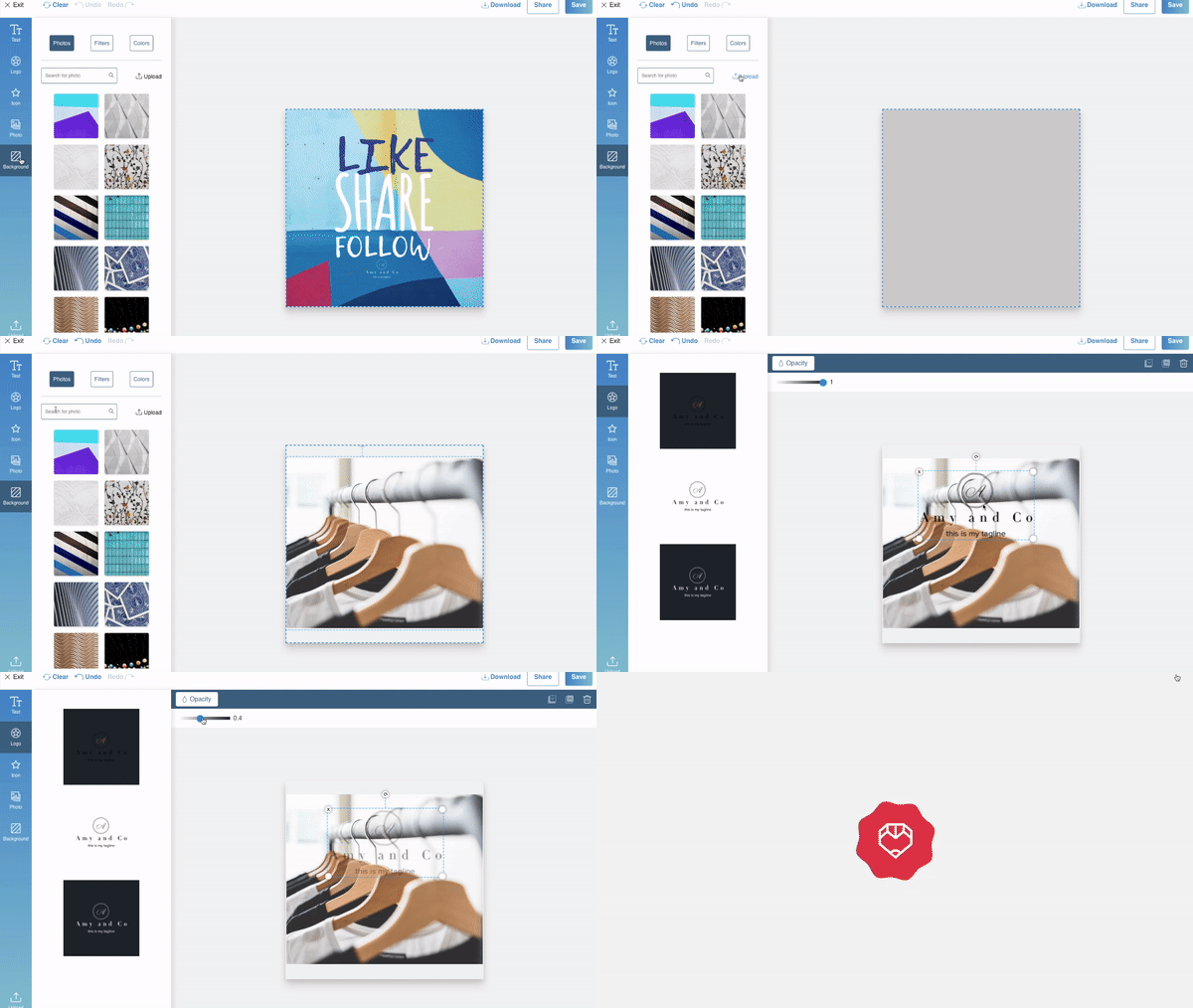
- Choose the design type you want (social post, cover, story, etc.). When you do this, the Graphic Design Tool will open and from here you will have several options in the left-hand menu.
- In the left-hand menu, click Photo and then add an image of your external logo by clicking on Upload.
4. From here, you'll be able to explore all of the templates and sizes we offer. You can choose the one that has the format you like the most.
5. Once you have created the image you like, all you have to do is go to the Logo section of your left-hand menu and insert your logo!
6. After the logo is in the image, you can position it anywhere, change its size, and rotate it. Once you have it placed, you can also change the Opacity at the top of the display, Save and Download :)

How to upload my own logo to the Digital Business Card
While you can't upload an external logo as the official logo of your digital card, you can still add it as an image to your digital card.
Simply follow the steps below:
- Log in to your Tailor Brands account
- Go to the Digital Card tab at the left of the screen
- Click on edit card in the card options dropdown
- Open the dropdown and click Edit Card.

4. Click on Design and turn off the 'Logo' toggle at the bottom

5. Click on Profile and then on "upload image" to upload your external logo as an image

The image should then appear in the top center of your Digital Card.
Your uploaded logo will only appear in the specific tool you added it to—it won’t replace the primary Tailor logo in your account. You will not be able to use your own logo in our print store.
But here’s the cool part: you can always create a secondary logo with our AI and keep using your own logo in your website, designs, and digital card—best of both worlds!